 Decoration & Art
 Interior & Furniture
 Blocks & Slabs & Stair
 Characters & Creatures
 Exterior & Architectural
 Nature & Plant
 Environment & Places
 Devices & Equipment
 Animals & Pets
 Science & Technology
 Weapon & Military
 Industrial
 Food & Drink
 Cars & Vehicles
 BDEngine Template
 Aircraft
 Watercraft
 Toys & Plushies
 Cosmetics & Accessories
 Music
Music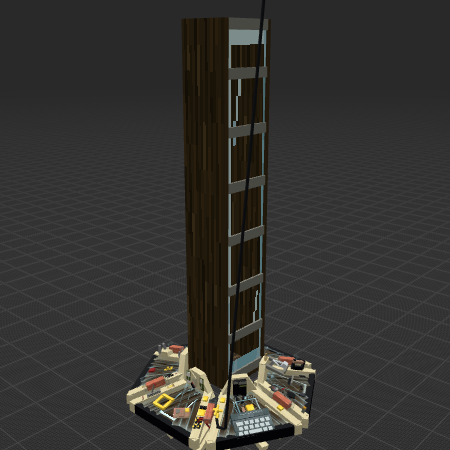
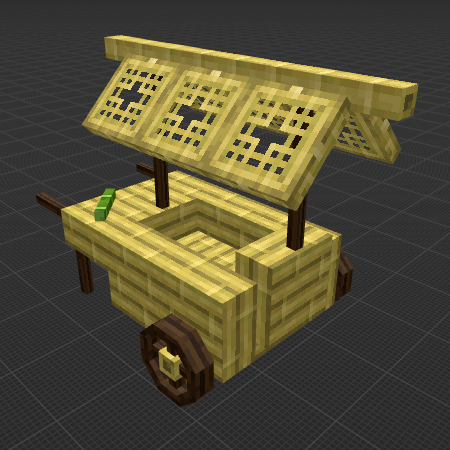
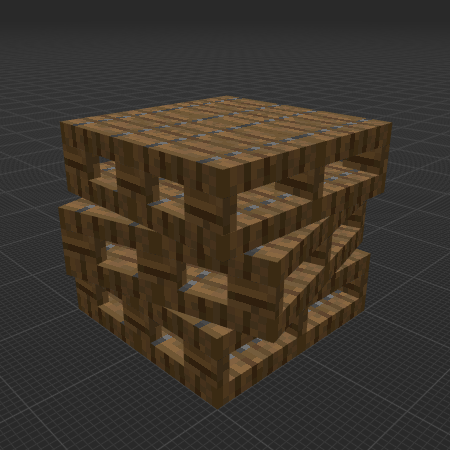
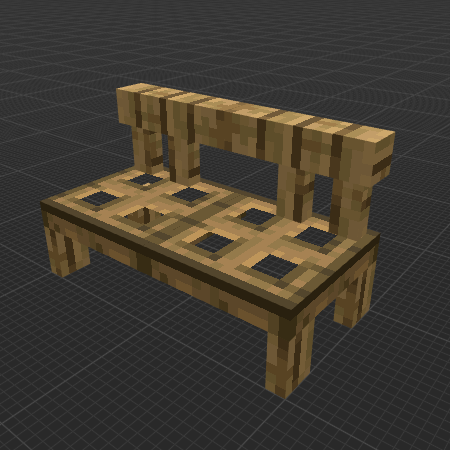
The model contains
andesite wall: 13
bell: 1
black concrete: 64
black concrete powder: 61
blue concrete: 2
blue concrete powder: 10
clock: 9
compass: 3
copper block: 23
cut copper: 5
cut sandstone: 1
dark oak wood: 50
exposed copper: 4
glass: 57
gold block: 53
gray candle: 10
gray concrete: 3
green concrete: 6
green concrete powder: 7
green terracotta: 1
iron block: 1
light gray concrete: 88
light gray stained glass: 1
lime terracotta: 1
ochre froglight: 1
orange concrete powder: 1
pink terracotta: 1
quartz block: 1
red concrete: 12
red concrete powder: 10
sand: 82
smooth quartz: 2
smooth sandstone: 37
stripped spruce wood: 2
tinted glass: 1
waxed cut copper: 1
waxed exposed cut copper: 1
white candle: 17
white concrete: 8
white terracotta: 1
yellow concrete: 10
yellow concrete powder: 3
yellow terracotta: 1
How do I move or rotate the model?
Use the editor window above to rotate or move the model as you want, and then click the Get the command button to get a new command.
If you want to make more changes or completely remake the model, open the full version of the editor using the Open in BDEngine button.
How to use it?
Via command blocks:
To use a command in the game, you need a Command Block, as the chat field in Minecraft has a character limit.
- 1. Open the chat on the "/" button and paste this command into it:
- 2. Place the Command Block in the desired location.
- 3. Right-click on the Command Block and specify in the Console Command field - this model's command, which you can copy by clicking on Get the command.
- 4. Change Need Redstone to Always Active.
- 5. Press Done.
Now you can destroy the Command Block and enjoy the installed model. Repeat the procedure several times if there are multiple model commands in the export window.
Via Axiom mod:
Be sure to install Axiom [modrinth] if you haven't already.
- 1. Click Get the command, select Command format: Axiom and copy the command.
- 2. Open the desired world in the game.
- 3. Use ctrl + V to insert a model into the world.
- 4. Click on the small white cube, next to the model, to move and rotate it.
Loading comments...